預先安裝說明 把工具裝好。Pre-install Guide Get the Toolchain Ready.
活動日期 July 30, 2026。請在抵達前依下方清單把工具裝好。提供 Windows 流程,每段指令都可一鍵複製貼上。Event date: July 30, 2026. Please install everything below before you arrive. A Windows flow with one-click copy on every command.
🎬
流程影片Walkthrough video
先看一段 2 分鐘流程導覽Watch a quick walkthrough first
點這裡開啟影片,快速了解本次預先安裝與準備流程。Open the video to quickly see the prep flow and what to expect.
Ubuntu 相關資訊可參考 iQ-Studio;不過本次工作坊以 Windows 為主,後續操作與步驟以 Windows 流程為主。For Ubuntu-related reference, please see iQ-Studio. This workshop is primarily focused on Windows, so the main hands-on flow below is Windows-based.
開始前請注意:本實作流程僅支援 Windows 11,請務必使用 Win11 系統進行操作。Please note: This tutorial only supports Windows 11. Please use a Windows 11 system for the following steps.
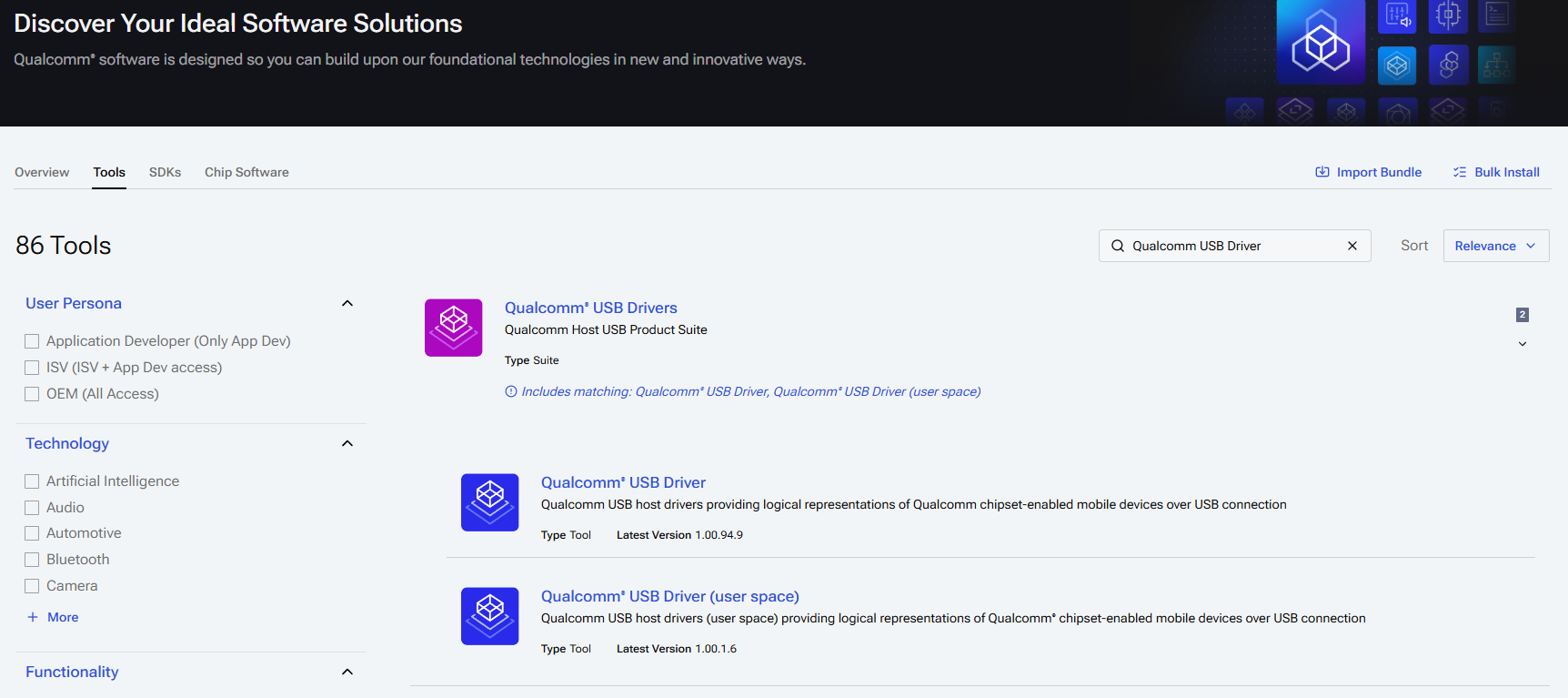
在 Tools 搜尋 Qualcomm USB Driver,下載並安裝。Under Tools, search Qualcomm USB Driver, then download and install.
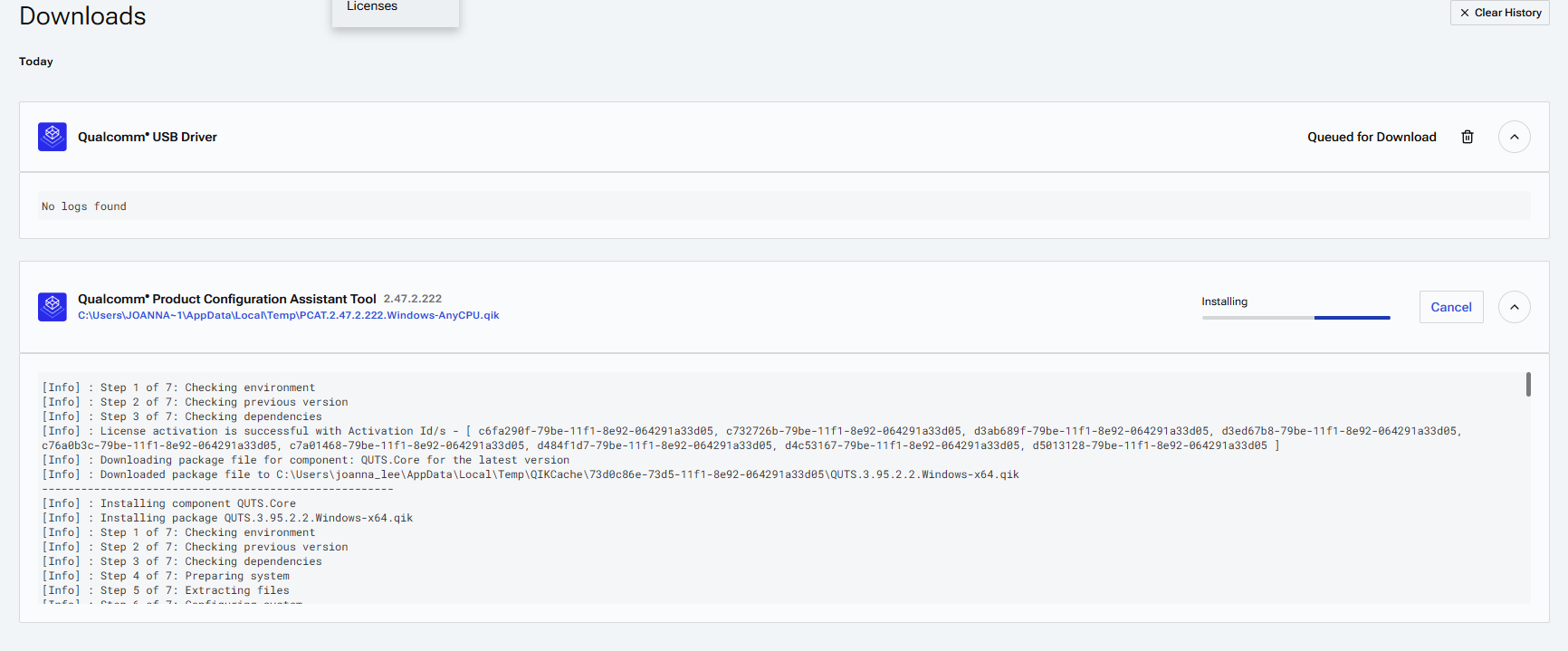
小提醒:一次只能安裝一個工具,若畫面顯示 No logs found 訊息,代表該工具尚未安裝。Note: Please install only one tool at a time. If the No logs found message appears, it indicates that the tool has not been successfully installed.
04
WSL + Ubuntu Setup
安裝環境為當日實作(Hands-on的基礎),請務必於課前完成配置。A pre-configured environment is essential for the hands-on session; please ensure the installation is successful beforehand.
以管理員權限開啟 Windows PowerShell,執行以下指令。Open Windows PowerShell with Administrator rightsand execute the following command.
bash
wsl.exe --install -d Ubuntu-22.04 --no-launch
執行以下指令,檢查是否安裝成功。Run the following command to check if the installation was successful.
bash
wsl.exe --list --verbose
PowerShell顯示Ubuntu-22.04就可以了!!As long as PowerShell displays 'Ubuntu-22.04', you're good to go!
若安裝過程中遇到權限限制,請聯繫貴公司的 IT 或 MIS 部門協助排除。After installing, QSC showing you have no devices connected is normal (no board attached yet).
wsl.exe --list --verbose 沒看到 Ubuntu-22.04,或安裝過程中出現錯誤?點開查看解法Don't see Ubuntu-22.04 in wsl.exe --list --verbose, or hit an error during install? Click to see the fix
請依序執行以下指令:Run the following commands in order:
查看可安裝的發行版清單。List the available distros online.
bash
wsl --list --online
更新 WSL 核心元件。Update the WSL core components.
bash
wsl --update
改用網頁下載方式重新安裝 Ubuntu-22.04。Reinstall Ubuntu-22.04 using web download instead.